

A sales forecast workbook goes out to the whole team so everyone can enter their quarterly numbers. Two weeks later someone mentions, carefully, that the file also contains the HR tab with salary bands. It was hidden, not removed, and anyone who right-clicked a sheet tab could unhide it. If you are searching for how to share only one sheet in Excel, this is usually the moment: you have one workbook, someone needs one sheet from it, and the rest is nobody's business. The frustrating part is that Excel has no button for this. Sharing works on files, and a file is all or nothing.
Why there is no built-in way to share only one sheet in Excel
Every sharing mechanism Excel offers, whether an email attachment, a OneDrive link, or co-authoring, grants access to the whole file. Permissions stop at the workbook boundary: whoever can open it can open every sheet in it. The protection features inside the workbook control what people can edit, not what the file contains. So sharing part of an Excel spreadsheet always means one of three workarounds, and they differ a lot in how much they actually protect.
Option 1: Copy the sheet into a new workbook
The quick fix. Right-click the sheet tab, choose Move or Copy, set "To book" to (new book), tick Create a copy, and click OK. Save the new one-sheet workbook and send that.
Two problems surface fast. First, formulas that reference other sheets don't come along gracefully: in the copy they turn into external links pointing back at your original file, so the recipient gets an "update links" warning and stale values instead of working calculations. You end up pasting values over formulas, which is fine for a report but useless for anything interactive. Second, the copy starts drifting the moment you send it. Next quarter you make another copy, and now three versions of the same numbers live in three inboxes. If a static copy is genuinely what you want, our checklist on sending Excel without formulas or hidden data covers how to make one that is actually clean.
Option 2: Hide the other sheets and protect the workbook
The second workaround keeps one file but hides everything the recipient shouldn't see: hide the sheets, then protect the workbook structure with a password so they can't be unhidden from the menu.
Treat this as politeness, not Excel security. The hidden sheets are still in the file you handed over, and an .xlsx is just a zip archive; the data can be read out with or without the password, and even "very hidden" sheets set via VBA travel with the file. We walked through how quickly each layer falls in our post on hiding a sheet in Excel. The short version: hiding prevents accidents among colleagues who weren't going to look anyway. If the other sheets contain salaries, margins, or formulas you consider intellectual property, the only safe file to share is one that never contained them.
Option 3: Share the sheet as a web app and keep the workbook
The third route drops the assumption that sharing means handing over a file. With airrange, you select the sheet, or just the range on it that matters, and publish it as a small web app. Recipients open a link in their browser and interact with the inputs and results you chose. The workbook itself is never delivered to their browser, so there is nothing to unhide and nothing to extract: the other tabs, the salary bands, and your formulas simply aren't there.
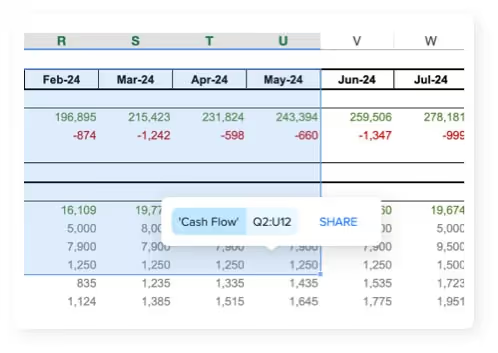
Because the shared thing is an app rather than a file, access control works like it does on the web instead of like a password on a zip. A link can be public, require an email passcode so you know who used it, or be limited to specific people or domains; you can add a password and an expiry date on top, and people opening a restricted link see your title and instructions in a small bar above the app. That is a different class of control than hoping nobody forwards the attachment.

Know one thing before you rely on this: sharing captures a snapshot of your app. Your live workbook and the shared version are deliberately separate, so you can keep editing without recipients watching half-finished work, and nothing reaches them until you click "Update these invitation links". Think of it as a release process rather than a live window into your file.
Collecting numbers back works without the file round-trip, too. When team members submit their figures in the app, the submissions arrive in the airrange add-in inside Excel, and each value lands at the target cell you configured, on the sheet, column, and row you chose. You review and merge in your master workbook instead of reconciling eight returned copies. The granular sharing feature page shows the full workflow.
On the data side, the model is strict: a local Excel file is never uploaded, and airrange stores only metadata about the app, such as which element is linked to which cell, not what the cell contains. If you use hosted files instead, they are stored encrypted on AWS in Frankfurt (EU). The details are on the compliance and security page.
Which option fits which situation
A one-off number for one person: copy the sheet, paste values, send it, done. Protecting trusted colleagues from their own accidental edits: hiding and sheet protection are enough, because nobody is attacking the file. But the moment the sheet is shared repeatedly, needs to stay current, or sits next to data that must not leak, the file-based workarounds stop being honest answers. A forecast collected every quarter from eight people is exactly the case where a shared web app pays off: one link, controlled access, submissions merging back into a master file that never left your machine.
If you have a workbook like that, take the sheet you were about to copy out and share it as an app instead. The first version takes about as long as writing the email you would have sent with the attachment.