

You attach the pricing workbook to a customer email, press send, and your calculation logic travels with it. Not just the quote on the first sheet: the margin formulas, the discount thresholds, a comment where a colleague wrote "we can go 10% lower if they push back", and your name in the file properties. If the recipient only needs the numbers, the answer is to paste values in Excel and strip the hidden extras before the file leaves your machine. Here is a pre-send checklist that takes about five minutes, and an alternative for the cases where the recipient genuinely needs to calculate.
What actually travels with an .xlsx attachment
An Excel file is a container, and the visible grid is only part of what's inside. A typical workbook you've been working in for months carries:
- Formulas, which are your business logic: how the price is built, where the margins sit, which assumptions drive the model.
- Hidden sheets, rows, and columns. Hiding is a display setting, not protection; anyone can unhide them in two clicks, as we showed in our guide to hiding sheets in Excel.
- Comments and notes, including threads you'd phrase differently for an outside reader.
- Document properties: author names, company name, sometimes the full internal file path.
- Named ranges and external links, which can reveal project names, server paths, and the structure of your model even after you delete the cells that used them.
None of this shows up when you glance at the sheet before sending. All of it ships in the file.
Step 1: Paste values in Excel to remove the formulas
First, work on a copy. Use File > Save As and give it a clean outward-facing name, because everything that follows is destructive by design and you want your master file untouched.
In the copy, on each sheet you plan to send:
- Select all cells with Ctrl+A (press it twice if the first press only selects the current region).
- Copy with Ctrl+C.
- On the Home tab, open the Paste dropdown and choose Values, or press Ctrl+Alt+V to open Paste Special and pick Values there.
Every formula is replaced by its current result. The numbers stay, the logic is gone. If the sheet loses its formatting, undo and use Values & Number Formatting from the same menu instead, which keeps percentage signs and currency formats intact. Click into a few key cells afterwards and check the formula bar: it should show a plain number, not an expression starting with =.
Delete any sheets the recipient doesn't need at all. A values-only salaries tab is still a salaries tab.
Step 2: Remove hidden data with the Document Inspector
Excel has a built-in tool for exactly this cleanup, and surprisingly few people use it. Go to File > Info > Check for Issues > Inspect Document. The Document Inspector scans the workbook for content you probably don't want to send, in categories you can tick individually: comments and notes, document properties and personal information, hidden rows and columns, hidden worksheets, and hidden names among them.
Click Inspect, then Remove All next to each category that should not travel. Two warnings from practice. The removals cannot be undone, which is the second reason you are working on a copy. And "hidden rows and columns" means exactly that: if your layout relies on helper columns being hidden rather than deleted, review what the inspector found before removing, or your values-only sheet may change shape.
Step 3: Check named ranges and external links
Two leftovers survive both steps above. Named ranges live in the Name Manager (Formulas tab, or Ctrl+F3): a name like ProjectPhoenix_Q3_margin tells a reader more than you'd like, so delete names the sent file no longer needs. Links to other workbooks sit under Data > Workbook Links in current Microsoft 365 Excel (Edit Links in older versions). Break the links there, both because the recipient will otherwise see update errors and because link paths expose your server and folder names.
Then close the file, reopen it, and read it once as the recipient will: check the formula bar on the cells that matter, skim the sheet tabs, glance at File > Info to confirm the properties are clean. Now it's safe to attach.
The trade-off: a values-only file is dead
You have protected your logic by killing the model. The recipient can read the numbers but can't recalculate anything: no "what if we take the 3-year option", no updated quote when the quantity changes, no playing with scenarios. Every revision means you edit the master, then run the whole checklist again, then send another attachment into a growing pile of versions.
And the protection only covers the logic. The values you did send are now a file on someone else's machine, free to be forwarded anywhere. For a one-off report that's usually acceptable. For a pricing model a prospect should explore, it defeats the purpose of sending anything.
When the recipient should calculate: share a live app instead
The checklist exists because an Excel file bundles two things that shouldn't travel together: the results you want to show and the logic that produces them. A different way to separate them is to not send a file at all. With airrange you turn the Excel model into a small web app: you pick which cells are inputs and which are results, and share a link instead of an attachment.
The recipient opens the link in a browser and gets a clean page with exactly the inputs and results you chose. They can change the quantity or the term and watch the price recalculate live, but the formulas are never delivered to their browser, and there is no workbook on their machine to inspect or forward. The master file stays with you; it can even stay on your own computer, since airrange can work with a local Excel file without uploading it anywhere. Links can be read-only or editable, and you can give one an expiry date, which an attachment will never have.
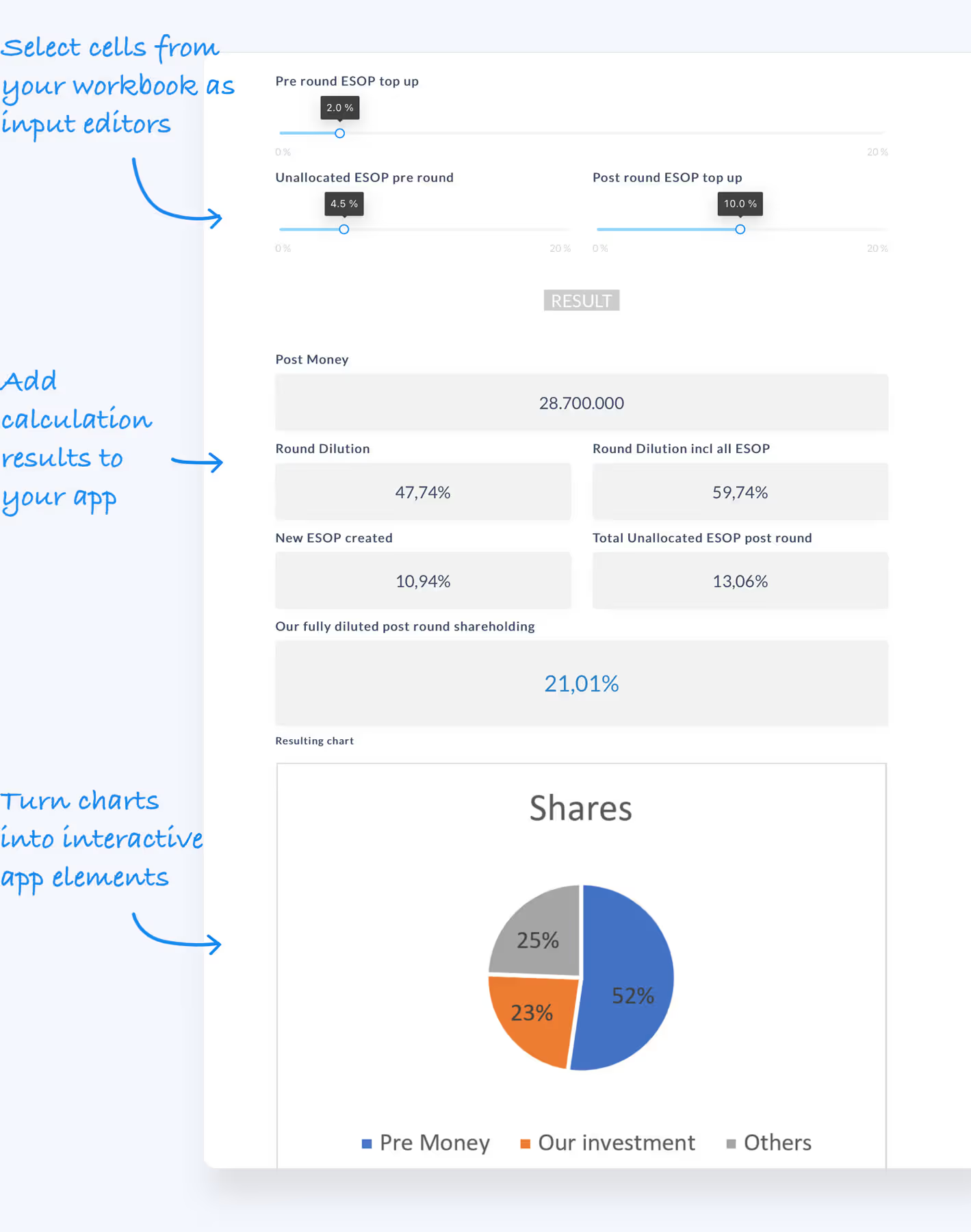
One detail changes how you work: a shared link serves the snapshot you last published, not your live working copy. You keep editing the master in Excel, and recipients see your changes only after you update the links, which turns "oops, I sent the wrong version" into a non-event. Teams use this for price quotes and customer-facing calculators, the exact documents that get emailed as stripped spreadsheets today.
The five-minute rule for outgoing spreadsheets
Before any workbook leaves your company: Save As a copy, paste values over every sheet, run the Document Inspector, clear names and links, reopen and read it as a stranger. If the recipient never needs to recalculate, that checklist is all you need, and it costs five minutes. If they do need to recalculate, a dead file will frustrate them and a live file will leak your logic, so send neither: publish the model as an app and share the link. Your formulas stay home either way.