

A finance manager sends the forecast workbook to the sales team so they can sanity-check their quarter. One rep, curious why the file is so slow, right-clicks a sheet tab and picks Unhide. The dialog lists a sheet called Salaries. Nobody did anything wrong, in Excel's terms: to hide a sheet in Excel is to change a display setting, and to unhide it takes two clicks that Excel offers anyone holding the file. Below is every way to hide sheets, including the "very hidden" state most people never see, and the part that matters more: what hiding actually protects you from, and what it never will.
How to hide a sheet in Excel
The quick way: right-click the sheet's tab at the bottom of the window and choose Hide. The ribbon route does the same thing: on the Home tab, open Format in the Cells group, then Hide & Unhide, then Hide Sheet.
To hide several sheets at once, select them first: hold Ctrl and click each tab you want (or click the first tab, hold Shift, and click the last for a contiguous run), then right-click the selection and choose Hide. Excel insists that at least one sheet stays visible, so you cannot hide everything.
How to unhide sheets in Excel
Right-click any visible sheet tab and choose Unhide. A dialog lists every hidden sheet; pick one and confirm. In current Microsoft 365 versions the dialog allows multi-select, so you can Ctrl-click or Shift-click several sheets and restore them in one go. In older perpetual versions the dialog takes one sheet at a time.
Keep that dialog in mind, because it is the whole story of the salary leak above. Anyone who can open the workbook can open this list. Hiding a sheet removes it from the tab bar, not from the file, and Excel helpfully catalogs what you hid for whoever asks.
Hiding sheet tabs and the "very hidden" state
Two lesser-known options go further. You can hide the tab bar entirely for a workbook: under File > Options > Advanced, in the display options for the workbook, clear Show sheet tabs. Every sheet is still there and reachable, for example through the Name Box; the workbook just looks like a single-page document.
Then there is the state Excel's own menus never mention: very hidden. Open the Visual Basic editor with Alt+F11, select the sheet in the Project Explorer, show the Properties window with F4, and set the sheet's Visible property to 2 - xlSheetVeryHidden. A very hidden sheet does not appear in the Unhide dialog at all. To a casual user the sheet has ceased to exist, and bringing it back requires the same properties window. No macros need to run; you are only flipping a stored property, so the workbook can stay a normal .xlsx.
Making Unhide grey out: protect the workbook structure
To stop the two-click unhide, protect the workbook's structure: on the Review tab, choose Protect Workbook, tick Structure, and set a password if you want one. From then on, Unhide is greyed out in the right-click menu, and sheets cannot be added, deleted, renamed, or moved either.
This is the strongest option Excel offers for keeping hidden sheets hidden, so it is worth being precise about what it is: a switch that disables some menu commands, guarded by a password check. It is not encryption. The sheet data sits in the file exactly as before, readable by any tool that opens the file format directly, and the protection itself is a well-documented weak point. Treat structure protection as a guard rail against accidental clicks by honest colleagues, not as a lock against anyone motivated.
Why hidden doesn't mean private
All four techniques share one property: the data never leaves the file. Hidden, very hidden, tabs off, structure protected — every copy you email, upload, or drop into a chat carries the complete Salaries sheet with it, and a copy cannot be recalled. You also cannot see what happens to it. Once the file is in someone else's inbox, forwarding it costs them one click and costs you all remaining control.
Excel is refreshingly honest about this if you ask it. Before sharing a file, run File > Info > Check for Issues > Inspect Document: the Document Inspector reports hidden worksheets, along with hidden rows, columns, and personal metadata. It even offers to remove hidden sheets for you. Use that button carefully on a copy, not the original, because removal deletes the sheets outright and any formulas that referenced them break.
So the honest summary of hiding is: good for decluttering, fine for keeping helper tables out of sight, useless as a confidentiality boundary. If a sheet must not reach the recipient, there is only one reliable move, and it happens before you press send.
Share the range, not the workbook
The reliable move is to stop sending the file and share only the part the recipient needs. That is what granular sharing in airrange does: you pick a cell, a range, or a sheet from your workbook and publish it as a small web app the recipient opens in the browser. The sales team gets the forecast inputs and results you chose. The Salaries sheet is not hidden from them; it was never part of what left your machine, so there is nothing to unhide, inspect, or forward.
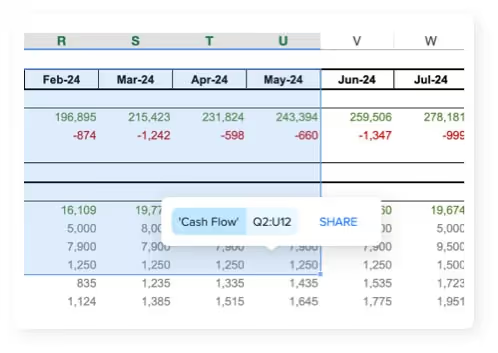
The specifics are what separate this from hiding. Recipients need neither Excel nor an account for a public link; the shared app runs in their browser, and your formulas and the workbook itself are never delivered to it. The add-in works in any Excel version that can run add-ins from the Microsoft store, and it works with local and on-premises files as well as Microsoft 365 files, so the master workbook can stay on your machine. When recipients enter numbers, you review and merge their changes back into the workbook from inside Excel, instead of reconciling returned copies. The Excel sharing overview walks through the model, and the compliance page covers where shared data is stored and how it is encrypted.
Before you send a workbook with hidden sheets
A short checklist for the moment before a workbook leaves the house:
- Run the Document Inspector. File > Info > Check for Issues > Inspect Document lists every hidden worksheet, including very hidden ones, plus hidden rows and columns.
- Ask the copy question. Would this file be a problem if it were forwarded once more than you intended? If yes, hiding is the wrong tool.
- Send a cleaned copy, not the original. Save a duplicate, delete the sensitive sheets from it, and repair the formulas that pointed at them.
- Or send no file at all. Share the relevant range as a web app and keep the workbook where it is.
Hiding sheets is a fine tidiness feature, and now you know all of its levels, from a hidden tab to a very hidden sheet behind protected structure. Just keep it in the tidiness drawer. The next time a workbook with a sensitive tab is about to go out, take the ten minutes to share the range instead: pick the cells the recipient needs, publish the link, and let the rest of the file stay yours.