

The budget file comes back from three departments and the totals are different. Something changed between version 4 and version 7, but the file itself won't tell you what, or who typed it. So the first question people ask is: can you track changes in Excel at all? Yes, but the answer has moved twice. The classic Track Changes feature still exists behind a hidden switch, its modern replacement called Show Changes works quite differently, and neither solves the underlying problem: other people editing your workbook directly. Here's how to use both, and what to do when a record of the damage isn't enough.
How to track changes in Excel with the legacy feature
If you remember a Track Changes button on the Review tab, you're not imagining it. Microsoft removed it from the ribbon because it depends on the old Shared Workbook mode, which is incompatible with co-authoring and blocks newer features; a workbook in that mode can't use tables, for example. The commands still ship with Excel, though. To get them back:
- Go to File > Options > Customize Ribbon (or Quick Access Toolbar).
- Under "Choose commands from", select All Commands.
- Add Track Changes (Legacy) to a new ribbon group. Excel lists Highlight Changes and Accept/Reject Changes separately too, if you'd rather add just those.
Then turn it on via Highlight Changes and tick "Track changes while editing. This also shares your workbook." Edits from then on get a colored cell border with a comment-style note saying who changed what and when, and Accept/Reject Changes walks you through the edits one at a time. Two limits to know before you rely on it: the change history is kept for 30 days by default, and formatting changes aren't tracked at all. Microsoft's own page on tracking changes in a shared workbook lists the full set of restrictions, and it reads like a feature on its way out, because it is. Use it only when a workbook must stay entirely on a file share and everyone edits it in turns.
Show Changes: the current answer in Microsoft 365
For workbooks saved to OneDrive or SharePoint, current Excel replaces all of this with Review > Show Changes. A pane opens listing edits newest first: who made each one, when, in which cell, and what the previous value was, so you can put a number back without restoring last week's copy. It catches typing, moving, sorting, and inserting or deleting rows and columns, including bulk edits, and you can filter the list to one sheet or one selected range: select it, right-click, and choose Show Changes to jump straight to its history. Microsoft has extended how far back the pane reaches: originally 60 days, now up to 365 on current versions, per its Show Changes documentation.
The gaps matter as much as the features. Formatting changes still aren't recorded. The workbook has to live in Microsoft's cloud, so a file on your local drive or a departmental share is out. And the pane reports edits; it doesn't let you accept or reject anything. If a colleague overwrote a formula last Tuesday, Show Changes will tell you precisely that — after the quotes already went out wrong. For recovering a whole earlier state rather than a single cell, version history (File > Info > Version History) is the companion tool.
Tracking is a record, not a review step
Notice what both features have in common: they answer questions after the workbook has already changed. That's built into the setup. When five people co-author one file, every keystroke lands in the master immediately. That is how Excel's own co-authoring works, as we described in our post on Excel co-authoring. Change tracking then reconstructs what happened. It never asks whether the change should have happened.
For a lot of shared files that's fine. But the workbooks people most want to track are the ones where edits are expensive: pricing models, budget consolidations, forecasts feeding board slides. There, what you actually want isn't a better log. You want the edits to arrive as proposals, and nothing to touch the master until you've said yes.
Review and merge: edits as proposals, not surprises
This is the model airrange uses for granular Excel sharing. Instead of handing colleagues the workbook, you pick the cells they're supposed to fill in — the input range of a forecast, the count column of a stock list — and publish just that as a small web app they open by link in the browser. The rest of the file stays private: formulas and the workbook itself are never delivered to the recipient's browser, and for restricted links people verify themselves with their email address and a 6-digit passcode, no account needed.
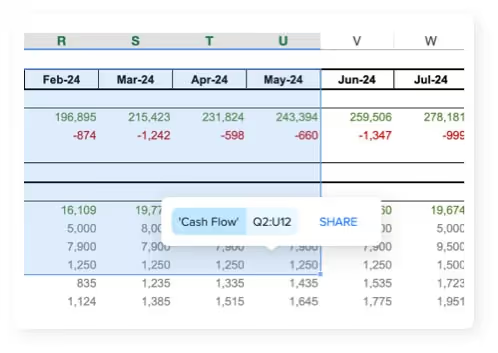
The part that replaces change tracking is what happens on the way back. Contributors submit their numbers, and the submissions arrive in the airrange add-in inside your Excel, each value mapped to the target address (sheet, column, row) you defined. You review what came in, approve the right entries, and merge them into the workbook; until you accept, the master doesn't change. Your working copy can be a local file on your machine: sharing works with local and on-premises workbooks in any Excel version that runs Microsoft Store add-ins, and local files are not uploaded. There is nothing to reconstruct afterwards because nothing got in unreviewed.
Shared elements also keep their own memory: airrange collects the full change history of each one automatically, so "when did this number last move, and who moved it" is a lookup rather than a comparison of backup copies.
Which change-tracking approach fits your workbook
| Situation | Right tool |
|---|---|
| Everyone edits together in Microsoft 365, and you occasionally need to see who changed what | Show Changes, plus version history for bigger rollbacks |
| A workbook stuck on an old file-share workflow, edited in turns | Legacy Track Changes, with its 30-day history in mind |
| Contributors only fill in a defined range, and edits must be approved before they count | Share the range, review and merge the submissions |
| Ten separate copies of the file are already in circulation | Too late for tracking; see our guide to merging Excel files, then fix the workflow |
The built-in features are genuinely useful, and for a workbook that lives in SharePoint with a trusted team, Show Changes may be all you ever need. The moment you find yourself scrolling the changes pane to figure out who broke the model, though, the log has done its job of proving the workflow wrong. An overview of the sharing options, from read-only links to reviewed inputs, is on our Excel sharing page. The shift from tracking edits to approving them is smaller than it sounds, and it ends the version archaeology for good.