

A sales forecast template goes out to twelve regional managers. Weeks later, someone notices the workbook also carried a hidden tab with the salary review for the whole company. Nobody hacked anything: a right-click on a sheet tab and Unhide was the entire attack. Stories like this are why Excel security is mostly a sharing problem. Inside your own OneDrive, a workbook is about as safe as the account protecting it. The risks start when the file leaves, and the protections Excel offers were built for a different threat than the one that actually bites: they stop accidents by colleagues, not curiosity by recipients. So it pays to know what each layer actually stops, where it quietly fails, and what to do when the stakes are higher than a formatting mishap.
The file password: real encryption, one shared secret
The strongest tool in the box is the password to open, set via File > Info > Protect Workbook. It encrypts the file itself, so without the password the contents are genuinely unreadable. Its two weaknesses have nothing to do with the cryptography. The often-confused "password to modify" provides no encryption at all and can be stripped in seconds. And the real password is a shared secret: to let someone work with the file you must hand over the one key that opens everything in it, and in practice the key travels in the same email as the file it opens. Our guide to password protecting an Excel file compares the three password types and when each is worth using.
Sheet protection and hidden sheets: guard rails, not locks
The layer most people reach for next lives inside the workbook: protect a sheet, lock cells, hide formulas, hide whole tabs. These features are genuinely useful against the everyday risk of a colleague typing over a formula, and that is the threat they were designed for. They are not access control. Sheet and workbook protection can be removed by tools that don't honor the password, because the data itself is not encrypted; an .xlsx file is a zip archive anyone can look inside. Hidden sheets ship with the file in full, as the salary story shows. We cover the honest limits in detail in the posts on hiding sheets in Excel and protecting formulas; the one-line summary is that everything inside a shared workbook should be treated as visible to whoever holds the file.
The biggest Excel sharing risk: copies you no longer control
Both layers above guard a single file. The larger problem is that sharing by attachment multiplies files. Every "quick version" saved to a desktop, every forward to a contractor, every copy on a private laptop is a complete, uncontrolled duplicate of your data and business logic, invisible to IT and untouched by any retention policy. Security teams call this shadow IT, and spreadsheets are its most common form precisely because mailing them feels so normal. You cannot revoke an attachment, you cannot expire it, and you will never know how many copies exist. The post on shadow IT examples looks at why files leak so much more readily than apps, and why banning Excel is the one fix that never works.
Excel security that holds: share the cells, not the workbook
Each layer so far fails the same way: the protection travels inside the file, and the file travels everywhere. The structural fix is to stop sending the file. With airrange you select the ranges people actually need, publish them as a web app, and send a link instead of an attachment. The workbook itself is never delivered to the recipient's browser, so hidden tabs, formulas, and everything you didn't select simply aren't there to find.
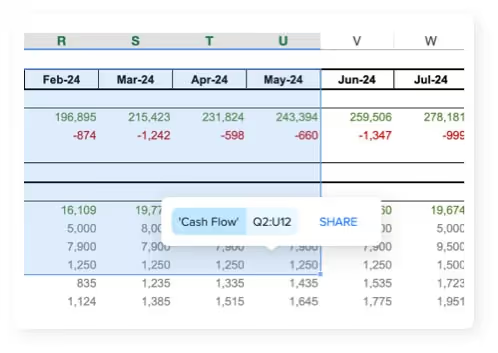
Access control attaches to the link instead of travelling inside the file. A link can require visitors to verify their email with a 6-digit passcode, or be restricted to listed addresses and domains, where an entry like @partner.com admits that company's addresses but rejects look-alike domains. Because expiry dates, passwords, and the allowed-recipients list live on the link rather than in a file, you can tighten or revoke access later without sending anything new; removing a person takes effect immediately. None of that is possible once an attachment has left your outbox.
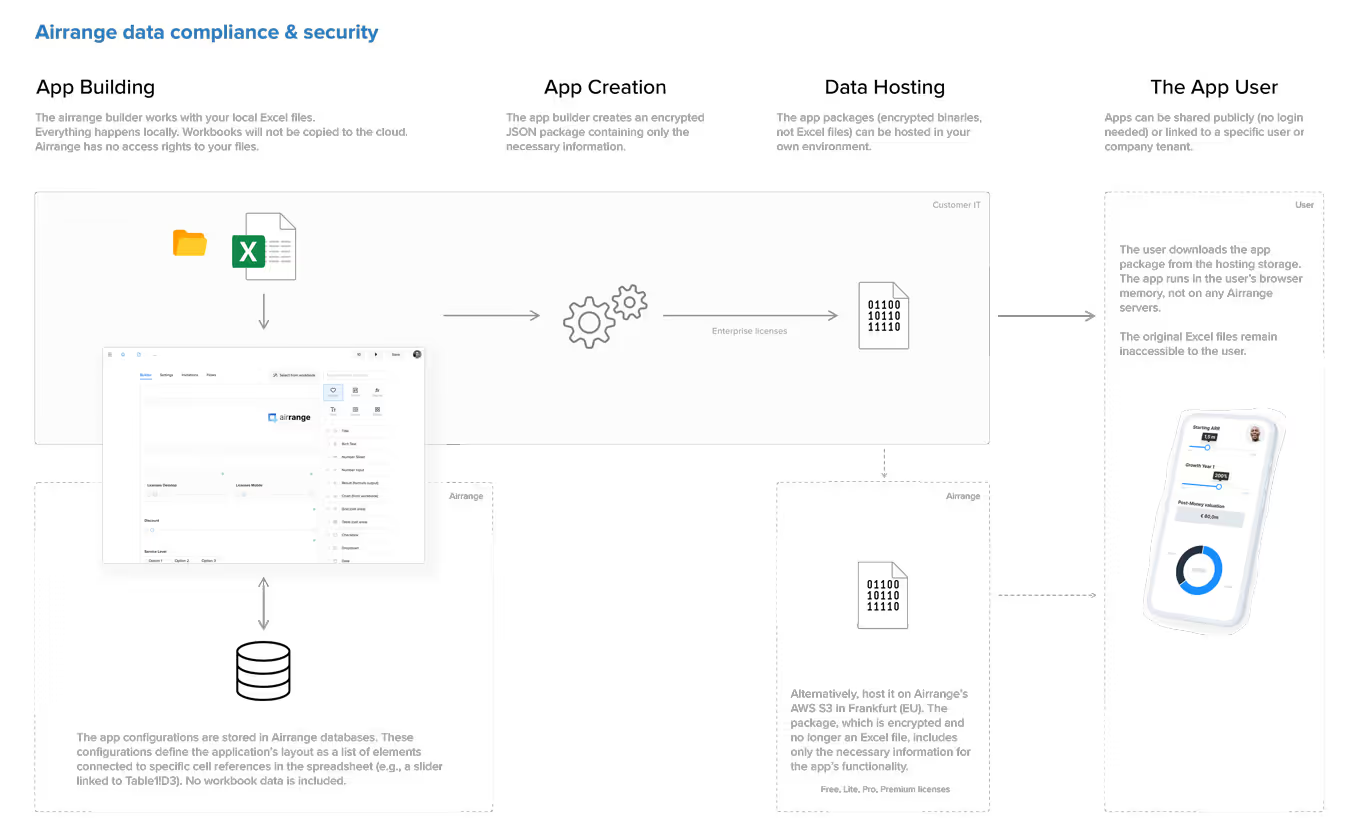
Sharing also stops meaning "handing over your working copy". Publishing captures a snapshot of the app, so your live workbook stays separate and recipients never see half-finished edits; you push updates deliberately with one click when a new version is ready. And the file itself stays home: by default everything stays local and your workbooks never leave your device, with only an encrypted package of the formulas and data the app needs created for sharing. If you prefer hosted files, they are stored encrypted in the EU (AWS Frankfurt). The compliance and security page documents the full model, and the granular sharing feature page shows the workflow, including how submitted values come back for review inside the Excel add-in instead of as returned copies.
Match the protection to the threat
None of this means abandoning Excel's built-in features. It means using each one for the threat it can handle. Sheet protection is right for keeping teammates from overwriting formulas. A password to open is right for a file at rest or a one-time handoff to a single trusted recipient. But when a workbook is shared repeatedly, contains data that must not leak, or carries logic your company considers an asset, the honest answer is that no in-file setting survives distribution. Audit your own inbox for a week and count the workbooks that fit that description; for each one, the question is not which password to set but whether the file needs to travel at all.
If one of those workbooks is due to go out again this quarter, try sharing it as an app instead: pick the ranges, create a restricted link, and keep the master file where it belongs.