

A finance workbook has to go to an external advisor by Friday. It carries three years of actuals, the pricing model, and a tab the advisor has no business seeing. Before it leaves, someone asks the reasonable question: how do you password protect an Excel file properly? Excel's honest answer is that it offers three different "passwords," and only one of them is real protection. Below are all three, exactly where each lives in the menus, and the limit Microsoft's dialogs never mention: what happens after you hand the password over.
How to password protect an Excel file so it can't be opened
The password that matters is the password to open. It encrypts the file itself, so the contents are unreadable without it, whether the file sits in an inbox, a shared drive, or a lost laptop.
In Excel for Windows:
- Open the workbook and go to File > Info.
- Click Protect Workbook, then Encrypt with Password.
- Type a password, click OK, and type it again to confirm.
- Save the file. From now on, Excel asks for the password before showing anything.
Two warnings belong right next to those steps. Passwords are case-sensitive, and a lost open-password is genuinely lost: Microsoft states plainly that it cannot retrieve forgotten passwords, and there is no reset flow. Store the password in a password manager before you send the file, not after. And when you do send it, keep the password off the channel that carries the file. Mail the workbook, then call or text the password.
The password to modify is not the same thing
Excel's second password lives somewhere few people look: File > Save As > Browse, then the small Tools dropdown next to the Save button, then General Options. The dialog offers two fields, a password to open and a password to modify.
The modify password sounds like edit protection, but it only controls whether Excel opens the file in read-only mode. Anyone without the password can still open the workbook read-only, read every sheet and every formula, and save an editable copy under a new name. It is a courtesy barrier for colleagues, useful for keeping a template from being overwritten. It protects no secrets.
Sheet and workbook protection: guard rails, not locks
The third kind of password is the one on Review > Protect Sheet and Review > Protect Workbook. Protect Sheet stops edits to locked cells; Protect Workbook stops sheets from being added, deleted, or unhidden. Both accept a password, which is where the confusion starts.
These passwords do not encrypt anything. The data, including every hidden sheet and formula, sits in the file in readable form, and third-party tools remove this kind of protection in seconds. Microsoft's own documentation is careful to present sheet protection as a way to prevent accidental edits, not as a security feature. Use it to keep honest colleagues from typing over your formulas. If you were hiding a salaries tab behind it, that tab still travels with every copy of the file; the earlier post on hiding sheets in Excel covers why hidden never means private.
The three passwords compared
| Password | Where it lives | What it actually does |
|---|---|---|
| Password to open | File > Info > Protect Workbook > Encrypt with Password | Encrypts the file. Real protection for a file at rest or in transit. |
| Password to modify | Save As > Tools > General Options | Opens read-only without the password. Contents fully visible; a copy is one Save As away. |
| Sheet / workbook protection | Review > Protect Sheet / Protect Workbook | Blocks edits and structure changes in the Excel UI. No encryption; easily stripped. |
Mac and browser differences
In Excel for Mac, both file passwords sit together under File > Passwords, with the same open/modify split. One cross-platform trap: Excel for Mac has a 15-character password limit, and a file encrypted on Windows with a longer password will not open on a Mac at all. If the workbook travels between platforms, stay under 15 characters.
Excel for the web can open and edit a workbook that already has an open-password, but it cannot add, change, or remove one. Setting the password remains a desktop job, so plan the encryption step for a machine with the full application installed.
What the password stops protecting the moment you share it
Encryption answers one question: can someone without the password read this file? Sending the workbook to your advisor changes the question. Now the person on the other end has the password, and with it the whole file: every sheet, every formula, the pricing logic, the tab you forgot about. Their copy is theirs permanently. They can decrypt it, save it without the password, and forward the result, and you will never know.
There is also no expiry. The engagement ends in March; the file still opens in December, and the password you texted works for whoever ends up holding both. A password to open is transport security, and it is good at that. It was never access control.
That distinction decides the right tool. If the recipient legitimately needs the entire workbook, encrypt it, share the password on a second channel, and accept that you have handed over a permanent copy. If they only need part of it, stop and use a different mechanism, because no Excel password can share a file partially.
When the advisor only needs part of the workbook
The alternative is to share the ranges the advisor needs and keep the file. With granular sharing in airrange, you select the relevant cells in the workbook and publish them as a small web app; the recipient opens a link in the browser. The workbook itself is never delivered: airrange packs only the formulas and data that app needs into an encrypted calculation package, and the master file can stay local, even on-premises, since local files are never uploaded.
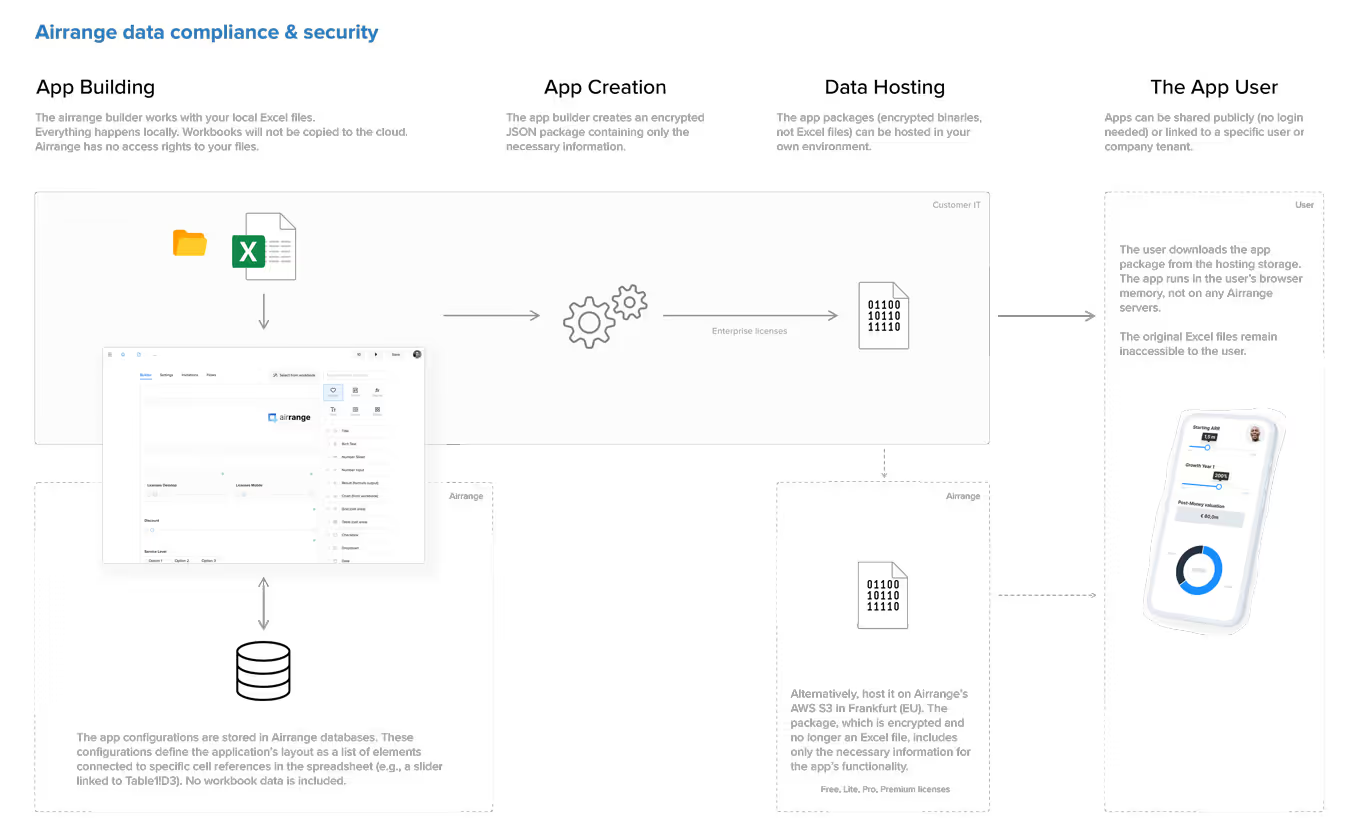
The controls you were reaching for with a file password exist here as link settings, and they behave like access control rather than a shared secret you can never take back. A share link takes an optional password of its own, which you can view or change later in the link's settings without creating a new link. Links take an expiry date, shown to recipients as "Available until", so access ends when the engagement does. And when it matters who gets in, a "Specific people or domains" link checks each visitor's email address with a 6-digit passcode before the app opens; list the advisor's address, or admit their whole firm with an entry like @advisorfirm.com. The Excel sharing overview walks through the model, and the compliance page details the encryption and the EU hosting in Frankfurt.
Protect the file, or stop sending it
For Friday's deadline: encrypt the workbook via File > Info > Encrypt with Password, keep the password under 15 characters if a Mac is involved, store it in your password manager, and send file and password on separate channels. That is the correct way to password protect an Excel file, and for a trusted recipient who needs everything, it is enough.
For every case where the recipient needs less than everything, remember what the password cannot do. It cannot expire, cannot be revoked from a copy already delivered, and cannot show someone half a workbook. Sharing the relevant range as an app does all three, and the file never leaves your machine.