

The calculator on your website is only as trustworthy as the numbers behind it. If your rate table lives in a Google Sheet that the sales team updates every few weeks, and your embedded quote calculator carries a copy of that table, the two will drift apart. Using a Google Sheets external data source fixes this at the root: the Sheet stays the single place where prices are maintained, and the published calculator or app reads the current values on its own. No re-import, no redeploy, no "which version is live?" conversation.
Here is how that works in airrange: what a synced table is, how to connect a Google Sheet to your website app, and what "live" actually means once real visitors are loading the page.
The problem with copying data into your calculator
Most calculator tools make you move your reference data into the tool. That works on day one. Six months later, the freight surcharges have changed twice, someone added a product tier, and the person who knows how to update the embedded calculator is on vacation. The Sheet is current; the website is not.
The failure isn't carelessness, it's architecture. Any setup where data has to be exported from one place and imported into another will eventually show stale numbers, because the update is a manual chore that competes with everything else on someone's list. The fix is to stop copying: keep the data where the team already maintains it, and let the app treat the Sheet as its source.
Google Sheets as an external data source
In airrange, the piece that makes this work is a table synced from Google Sheets. A table is a named dataset that lives in your workspace, outside any single workbook. When its source is a Google Sheet, airrange copies the sheet's values into the table, and you can mount that table into the workbook behind your calculator as an extra sheet. Your formulas then look up rates from it the way they would from any range, except that you address columns by their header names: =VLOOKUP(A2, Rates[#Data], 3, FALSE) keeps working when the sales team appends fifty new rows, because there is no fixed range to outgrow.
The division of labor is deliberate. Google Sheets remains the editing surface, with all the sharing and editing habits your team already has. The airrange table is a values-only copy: formulas and formatting stay in the Sheet, the table stores calculated results as plain data, up to 50,000 rows. And the workbook mounted on top of it is where your calculator logic lives, published as an app your visitors use without ever seeing the spreadsheet. If you're starting from the spreadsheet side, the Google Sheets to app page shows that half of the picture.
Connecting a Google Sheet to your app, step by step
The whole setup takes about two minutes. Start in Google Sheets: copy a share link set to "anyone with the link". If the workbook is confidential and you'd rather not create a public link, choose "From your Google account" instead during setup; a Google sign-in popup lets airrange list your spreadsheets, so private sheets work too.
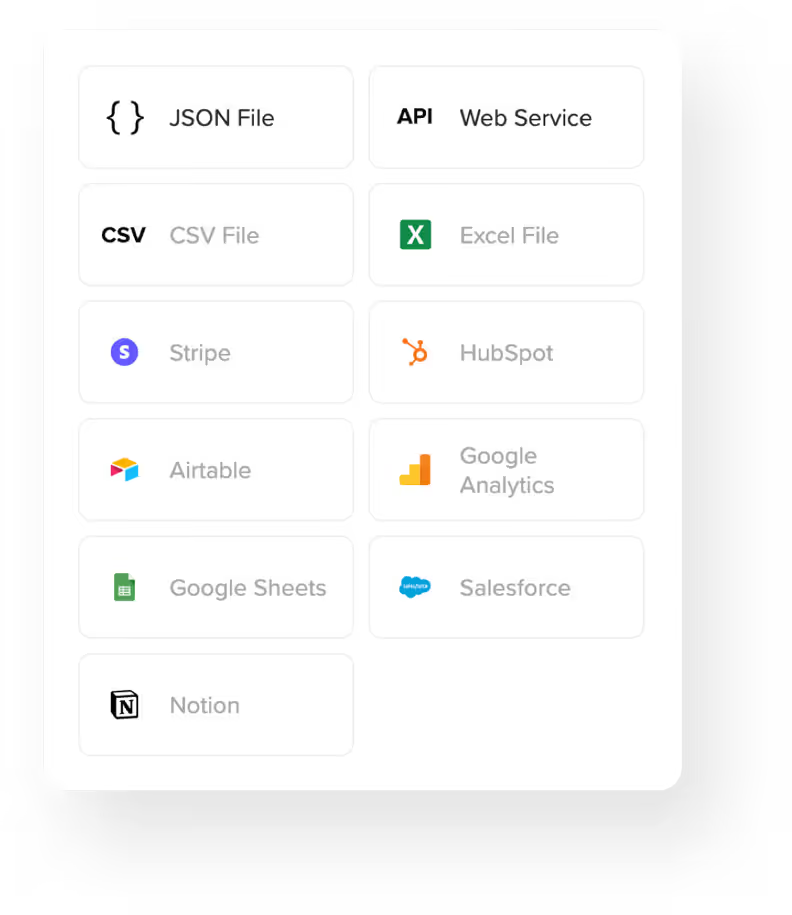
Then, in the airrange dashboard, open the Tables area and create a new table with Google Sheets as the data source. Choose "From a shared link", paste the link, and load it. Airrange shows a preview, takes the first row as column headers, and detects column types on its own. Name the table and click "Create & Sync Table". That's the source connected.
The second half happens in the workbook that powers your calculator. Open its data connection menu, choose Connect Table, pick the table you just created, and save. The table appears as a new sheet tab, marked in light blue so you can tell it apart from your own sheets. It behaves like a read-only sheet: your pricing formulas reference it directly, and something like =SUM(Rates[surcharge]) works immediately.
From there you build and publish the app as usual. Sharing in airrange is granular: you decide which inputs and results visitors get, and the formulas and the rest of the rate table stay hidden. Nobody can see or copy your pricing logic through the published calculator. The granular sharing feature page explains how that boundary works.
What "live" means once the app is published
Here is the behavior that matters day to day: a connected table's data is not stored inside the published app. Every time the app starts, it fetches the table's current rows. So when the rates change, nobody touches the website. The sales team edits the Google Sheet, you open the table in airrange and click "Sync now", and every visitor who loads the calculator after that sees the new numbers. No republish, no new embed code.
Two details are worth knowing before you rely on this. First, the sync from Google Sheets into the table is manual by design; scheduled automatic sync isn't available yet. In practice that's a feature for pricing data: the moment you click "Sync now" is the moment new rates go live, which gives you an explicit release step instead of a Sheet edit silently changing quotes mid-negotiation. Second, if columns were added, renamed, or removed in the Sheet, airrange notices during sync and asks you to confirm before applying the change, because your lookups may depend on those column names. A typo in a header can't quietly break the calculator.
For long-running sessions there's one more tool: a button in your app can carry the "Reload connected tables" action, which re-fetches every connected table on demand. That's mostly relevant for internal apps where someone keeps a tab open all day; a public quote calculator gets fresh data on each visit anyway.
The payoff: one Sheet, always-current quotes
Back to the scenario this is built for. A sales team maintains rates in a Google Sheet because that's the tool they know and the approval workflow already lives there. The company website embeds a quote calculator built on those rates. With the Sheet connected as an external data source, the update path is: edit the Sheet, sync the table, done. The calculator on the website, the version a partner has bookmarked, and the one embedded in a landing page all read from the same table and are all current on their next load.
Compare that with the alternatives. Hard-coding rates into a web calculator means a developer ticket for every price change. Re-uploading a spreadsheet means remembering to do it. A custom API integration means building and maintaining one. The synced table costs you a two-minute setup and one click per release. Google Sheets sync requires the Plus plan, and if quoting is your use case, the price quotes use case shows what the finished calculator side can look like.
If you already have the Sheet, you're most of the way there. Create a table from it, connect it to a workbook, and put a calculator on your website that you never have to chase for stale numbers again.