

The quarterly forecast goes out to eight regional managers with one instruction: fill in your numbers in column D. By Friday the file is back eight times, and three of the copies have more than column D changed. One manager overwrote the growth formula in E because the result "looked wrong". Another pasted a row from last year's file and flattened the formatting. Knowing how to lock specific cells in Excel is the standard fix: you leave the input cells editable, lock everything else, and colleagues can only type where they should. Here is the full setup, the Allow Edit Ranges option most people miss, and an honest look at where locking stops helping.
How to lock specific cells in Excel
The counterintuitive part first: every cell in a worksheet is already marked as locked. You never notice because the lock is dormant until you protect the sheet. So the job is not to lock the cells you want to protect; it is to unlock the cells people should edit, then switch protection on for the rest.
Step one, unlock the input cells. Select the ranges colleagues should fill in, say D2:D50. Press Ctrl+1 to open Format Cells, switch to the Protection tab, and clear the Locked checkbox. The same toggle lives on the Home tab under Format > Lock Cell if you prefer the ribbon. Holding Ctrl while selecting lets you unlock scattered ranges in one pass.
Step two, protect the sheet. On the Review tab, in the Protect group, click Protect Sheet. The password is optional; without one, anybody can unprotect the sheet from the same menu, so set one for anything that leaves your team. The checkbox list below decides what people may still do. Keep Select unlocked cells ticked. Whether to allow Select locked cells is taste: allowing it lets people click a locked cell to read its formula, forbidding it makes the Tab key hop neatly from one input cell to the next, which colleagues filling a form tend to like.
Step three, test it. Type into an input cell, then into a locked one. The locked cell should answer with the "The cell or chart you're trying to change is on a protected sheet" message. If anything is still editable that should not be, the usual cause is a range that never had its Locked flag set, often because a whole imported region came in unlocked.
Allow Edit Ranges: exceptions with their own rules
Protect Sheet is all-or-nothing per cell. When different people should edit different areas of the same sheet, use Allow Edit Ranges, also on the Review tab. Click New, give the range a title, point Refers to cells at the area, and optionally set a range password. After you protect the sheet, that range stays locked until someone enters its password, so you can give the North region a password for D2:D10 and the South region one for D11:D20.
Two caveats before you build a process on this. A range password is a shared secret: everyone who has it gets in, and you distribute and rotate it yourself. And the Permissions button, which admits named users without a password, checks Windows accounts, so in practice it works inside a company domain on desktop Excel for Windows and does not carry over to co-authoring in the browser. Protected sheets themselves are enforced everywhere, in Excel for the web and during co-authoring; it is the per-user exceptions that stay a desktop feature.
Where cell locking stops helping
Everything above controls editing. It controls nothing about seeing. The eight managers still receive the entire workbook: every region's targets, the assumptions sheet, whatever else lives in the file. A locked cell shows its formula in the formula bar unless you also hid it, which is a separate setup covered in our post on protecting formulas in Excel. Hidden sheets are two clicks from visible, as the hidden-sheets post shows in painful detail.
Sheet protection is also a courtesy barrier, not a security feature. It reliably stops honest colleagues from accidental edits, which is genuinely valuable, but it does not stand up to anyone determined, and Microsoft has never claimed otherwise. Treat it as a guard rail, not a lock.
The third gap is the workflow itself. Locking decides where people may type, but there is no approval step: whatever they enter is simply in the file. If you mailed copies around, you now reconcile eight returned attachments by hand, a chore we dissected in how to merge Excel files from multiple people. If you co-author one shared file, edits land in the master the moment they are typed, right or wrong.
Share only the input cells instead
Notice what you actually wanted in the forecast scenario: eight people fill in eight small ranges, see enough context to do it well, and touch nothing else. Sending the whole workbook and fencing off most of it is a roundabout way to get there. Granular sharing in airrange approaches it from the other side: you select the input range in your workbook and publish just that as a small web app. Contributors open a link in the browser, no Excel and no account needed, and see only the areas you shared, with input open exactly where you allowed it. The rest of the workbook never left your machine, and formulas are not delivered to their browser at all.
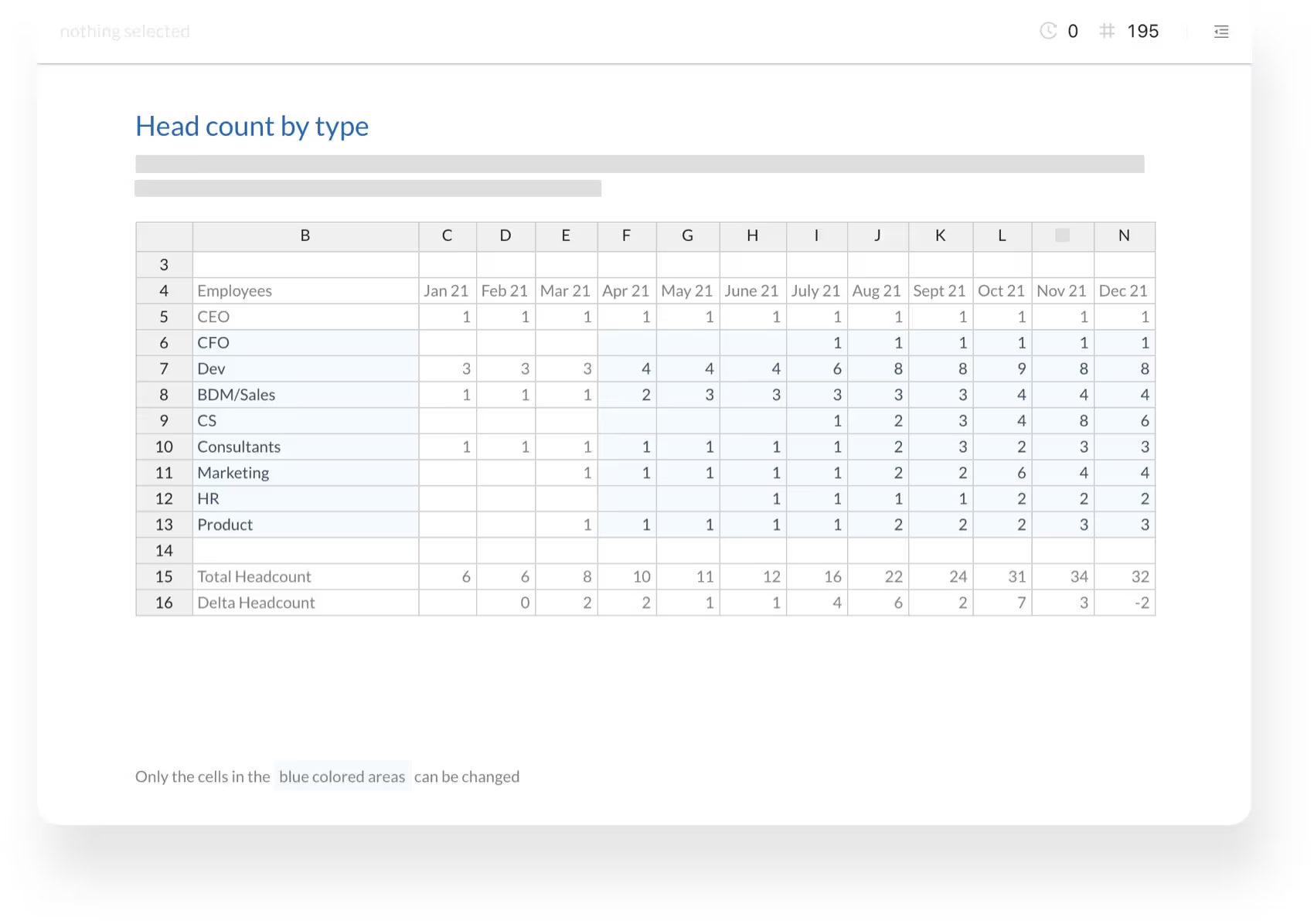
The mechanics mirror what Allow Edit Ranges wishes it could do. You define which areas are visible and which are truly editable, per share. A link can be restricted to listed people or to a whole domain like @yourcompany.com, each visitor verified by a 6-digit passcode sent to their email. That replaces the shared range password with per-person access, and you can change the list later without reissuing the link. The add-in comes from the Microsoft store and works with local and on-premises files as well as Microsoft 365 files, so the master workbook can stay exactly where it is.
The approval step exists here, too. Entries come back into Excel through the airrange add-in, and each submitted value lands at a target address you configured, down to the sheet, column, and row. You review and merge changes into the master workbook instead of trusting whatever arrived. The Excel sharing overview walks through the whole model. And if what you need is less "protect my existing workbook" and more "collect new entries in a structured form", that is a different job; our guide to Excel data entry forms covers it.
FAQ: lock cells, protect sheet, protect workbook
What is the difference between locking cells and protecting the sheet?
Locking is a per-cell attribute, protection is the switch that makes it count. The Locked checkbox in Format Cells marks which cells will be read-only once protection is on, and Protect Sheet on the Review tab turns it on. One without the other does nothing.
What does Protect Workbook do that Protect Sheet doesn't?
Protect Sheet governs cells on one worksheet. Protect Workbook, next to it on the Review tab, guards the workbook's structure: with it on, sheets cannot be added, deleted, renamed, moved, or unhidden. Use both on a file where some sheets are locked down and others should not even be discoverable.
I locked cells, but everyone can still edit them. Why?
Almost always because the sheet is not protected. Locked is the default state of every cell, so a sheet that was never protected behaves as if nothing were locked. Check Review: if the button says Protect Sheet, protection is off, and every Locked flag is dormant until you click it.
Locking specific cells is ten minutes well spent on any workbook that collects input from more than one person; it ends the overwritten-formula class of accidents for good. Just be clear about what you solved. Everyone still holds the full file, and nothing reviews what they typed. The day either of those starts to hurt, share the input range as a web app and keep the workbook to yourself.