

Somewhere on a shared drive right now sits a file called forecast_final_v7_JS_reviewed.xlsx, next to v6, v7_old, and a copy of v7 with someone's initials on it. Nobody is sure which one fed the board slides. Excel version history exists to answer exactly this kind of question, and in Microsoft 365 it works well, provided your file lives in the right place. Here is how to see version history in Excel, how to restore a previous version when something went wrong, what to do when there is no history to restore, and why some teams keep ending up at v7 anyway.
How to see version history in Excel
Version history is available for workbooks saved to OneDrive or SharePoint. If your file qualifies, there are two ways in from inside Excel:
- Click the file name in the title bar, then choose Version History. This is the fastest route and works the same in Excel for the web.
- Or go to File > Info > Version History.
Either way, a pane opens on the right listing saved versions with a date and the name of the person who saved each one. Click Open version on any entry and Excel opens that version read-only in a separate window, so you can check the numbers before committing to anything. If it's the one you want, click Restore to make it the current version.
Restoring is less destructive than it sounds: the restore itself is saved as a new version on top of the stack, so the versions created after your restore point are still in the list. You can look at a restore as "copy an old state forward" rather than "delete recent work".
Restore a previous version from OneDrive or SharePoint
You don't need Excel open to roll a file back. In OneDrive on the web or a SharePoint document library, right-click the workbook and choose Version history. A pane lists the versions; open the menu next to the one you want and click Restore, or open it first to check. Microsoft's page on restoring a previous version of a file stored in OneDrive covers the variations, including doing the same from File Explorer if you run the OneDrive sync app.
Mind the retention rules. A personal OneDrive account keeps version history for 30 days. Work and school accounts are more generous: SharePoint and OneDrive for Business keep a number of versions set by your admin, typically hundreds. Even so, "it's in version history" is not an archive policy. If a particular state of a workbook matters legally or financially, save it as its own file.
When there is no version history: local files and unsaved work
The feature has one hard requirement people discover at the worst moment: a workbook on your local disk or a classic network share has no version history at all. Excel only versions files stored in OneDrive or SharePoint. For everything else, what you have is AutoRecover, which is crash protection, not versioning.
Two recovery paths are worth knowing:
- Excel crashed with the file open: reopen Excel and look for the Document Recovery pane, which offers the last AutoRecover snapshot. By default Excel takes one every 10 minutes; you can tighten that under File > Options > Save.
- You closed without saving: go to File > Info > Manage Workbook > Recover Unsaved Workbooks. Excel opens a folder of draft files. Sort by date, open the newest, and use Save As immediately.
AutoRecover snapshots are deleted once you save and close normally, so neither path lets you reach last Tuesday's numbers. If a local workbook matters, either move it to OneDrive so real versioning kicks in, or accept that your only history is whatever backups your IT runs.
Why you keep needing version history: every copy is a fork
Here is the uncomfortable part. Version history protects one file in one location. The moment a workbook is emailed, downloaded, or copied to "my documents, just in case", that protection ends — every copy is a fork with its own silent edits, and no Version History pane spans the twelve copies sitting in inboxes. That's how v7_JS_reviewed happens: not because people are careless, but because sending copies is how the workbook gets shared in the first place.
The usual countermeasures treat the symptoms. You can reconstruct who changed what with change tracking in Excel, and when the copies have already multiplied you can consolidate them, as we described in our guide to merging Excel files from multiple people. Both work. Both also run after the forks already exist.
Excel versioning without the version numbers
The teams that stop needing restore buttons are the ones that stop producing copies. The pattern: one master workbook stays with its owner, and everyone else gets a purpose-built view of it: a web app made from the ranges they actually need, shared by link. That's the idea behind sharing Excel without sending the file: contributors see input fields and results in the browser, never the workbook, so there is nothing for them to fork.
Inputs flow back in a controlled way instead of as returned attachments. When someone submits numbers in the app, the submission arrives in the airrange add-in inside your Excel, with each value mapped to the sheet, column, and row you defined. You review what came in and merge it into the master; until you accept, the file doesn't change. One workbook, one history, no reconciliation.
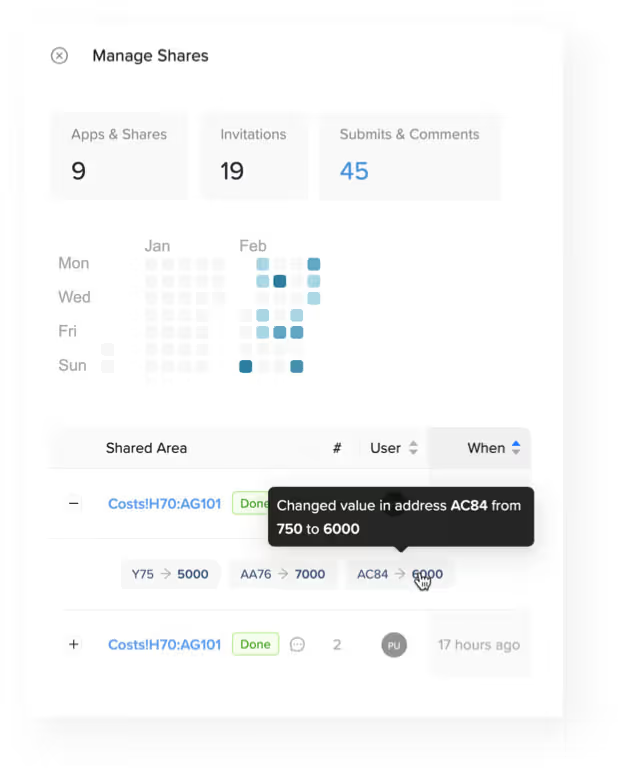
Updating people works the same way in reverse, and this is where the version numbers really die. A shared app serves a snapshot — the state of the app when you published it — so you can keep editing the master without anyone seeing half-finished work. When the new version is ready, one click on "Update these invitation links" pushes it to every link and embed at once. Nobody gets a new attachment, old links don't go stale, and anyone currently using the app isn't interrupted. It's a release process: v7 exists, but only you ever see the number. The same works with granular sharing for a single range or table, and the master can stay a local file on your machine.
Restore when you must, share so you rarely must
Learn the two menu paths (title bar > Version History in Excel, right-click > Version history in OneDrive) and move any workbook you care about into OneDrive or SharePoint so those paths exist when you need them. Then look at why you keep needing them. If the answer is "because six people mail the file around", version history is treating the fork problem one restore at a time. For the collaboration side, our post on better Excel collaboration shows what one master file with shared views looks like in practice.