
How to create a Kanban board in Excel
Manage and monitor your progress in projects comfortably in Excel with powerful Kanban boards.
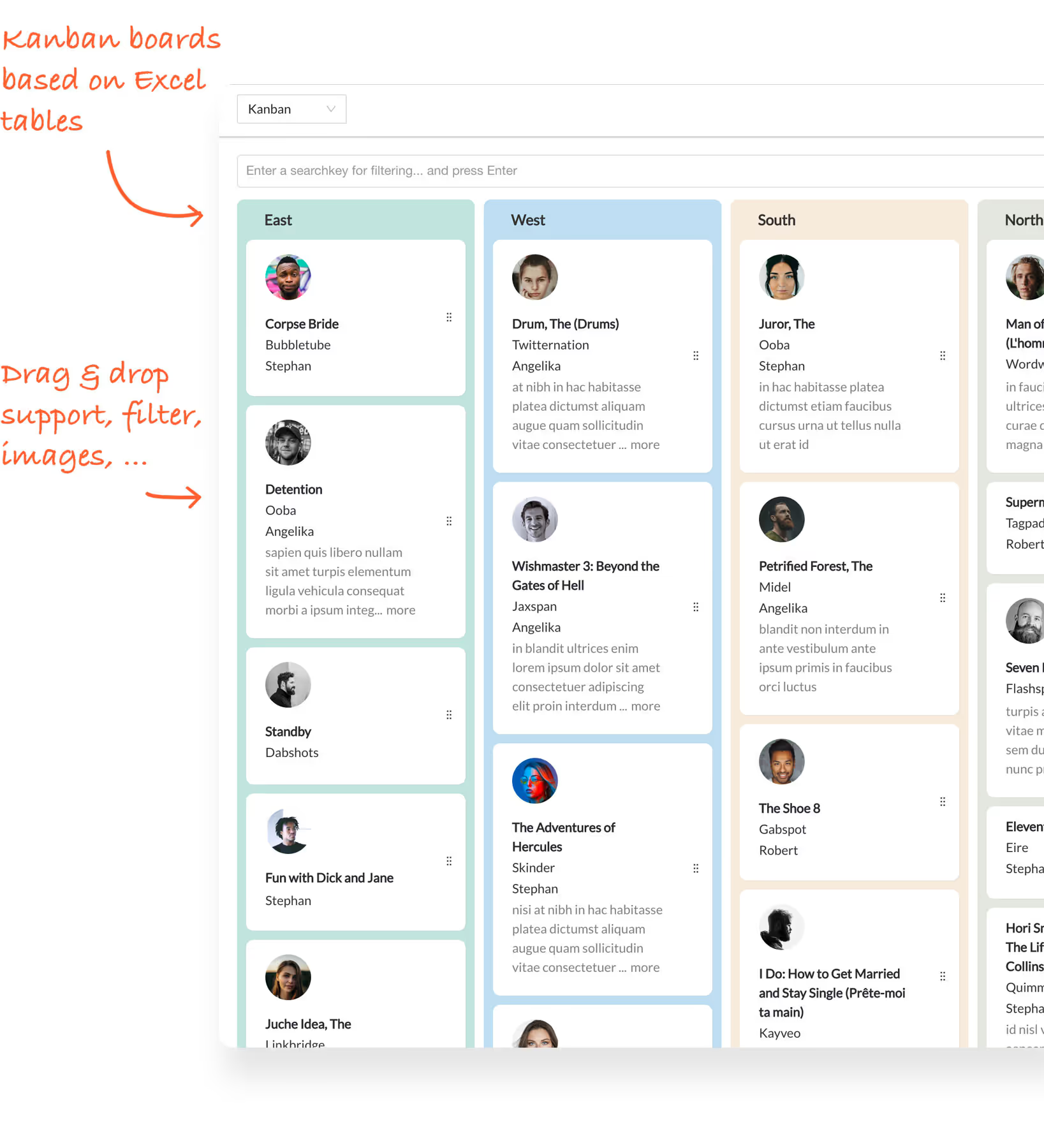
Turn Excel tables into Kanban boards
Transform your Excel task lists into visual Kanban boards. Drag and drop tasks between columns, track progress, and collaborate with your team.
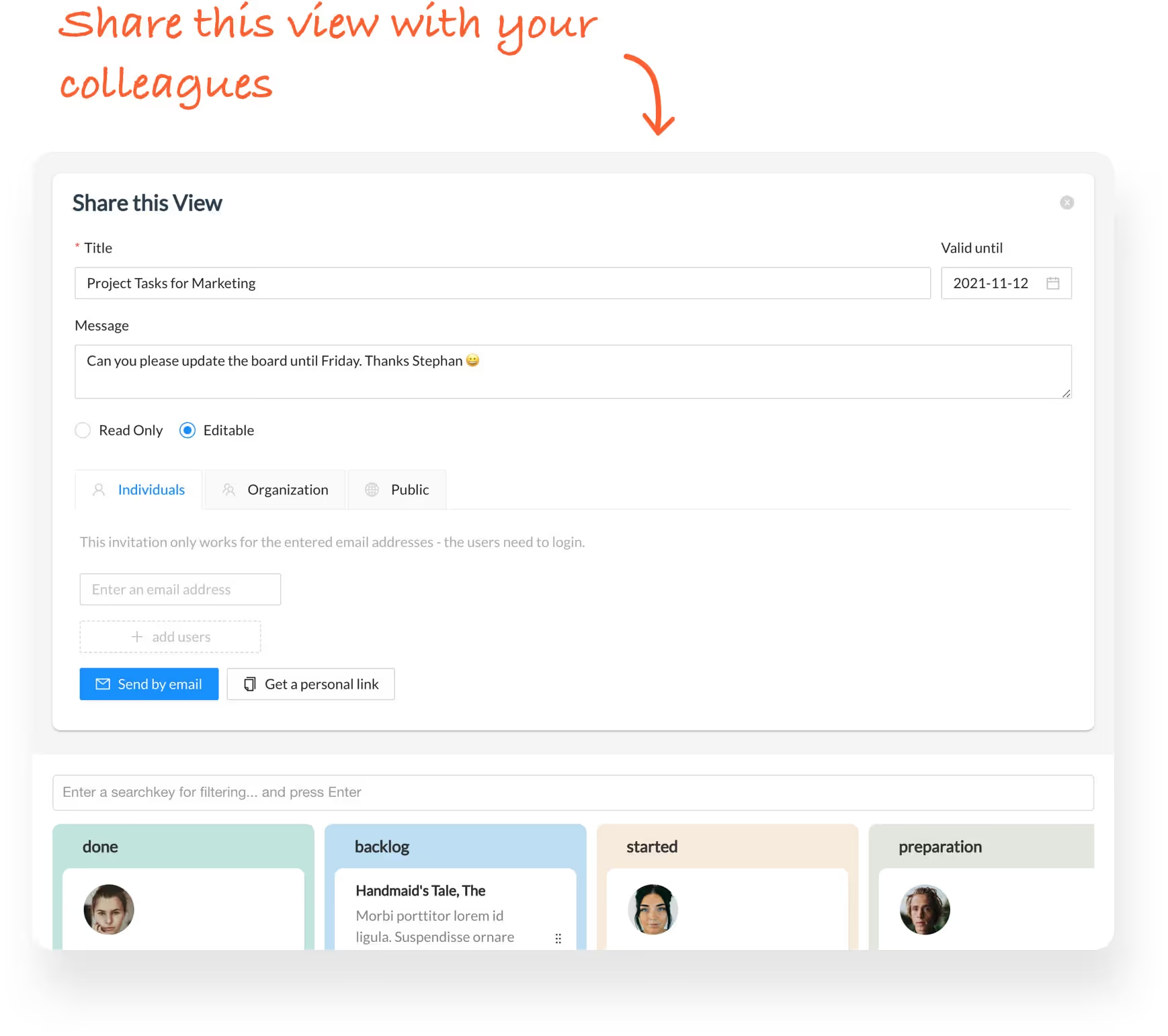
Share Excel based Kanban with your team
Share your Kanban board with team members, external partners, or embed it in MS Teams. Everyone stays in sync.
Integrate Kanban boards into MS Teams

Visual project management
See your tasks organized in columns. Move them along as work progresses.

Real-time collaboration
Multiple users can update the Kanban board simultaneously. Changes sync back to Excel.

No extra tools needed
Keep working with Excel. Airrange adds the Kanban view on top — no migration required.
Your step by step guide to creating a Kanban board in Excel with Airrange
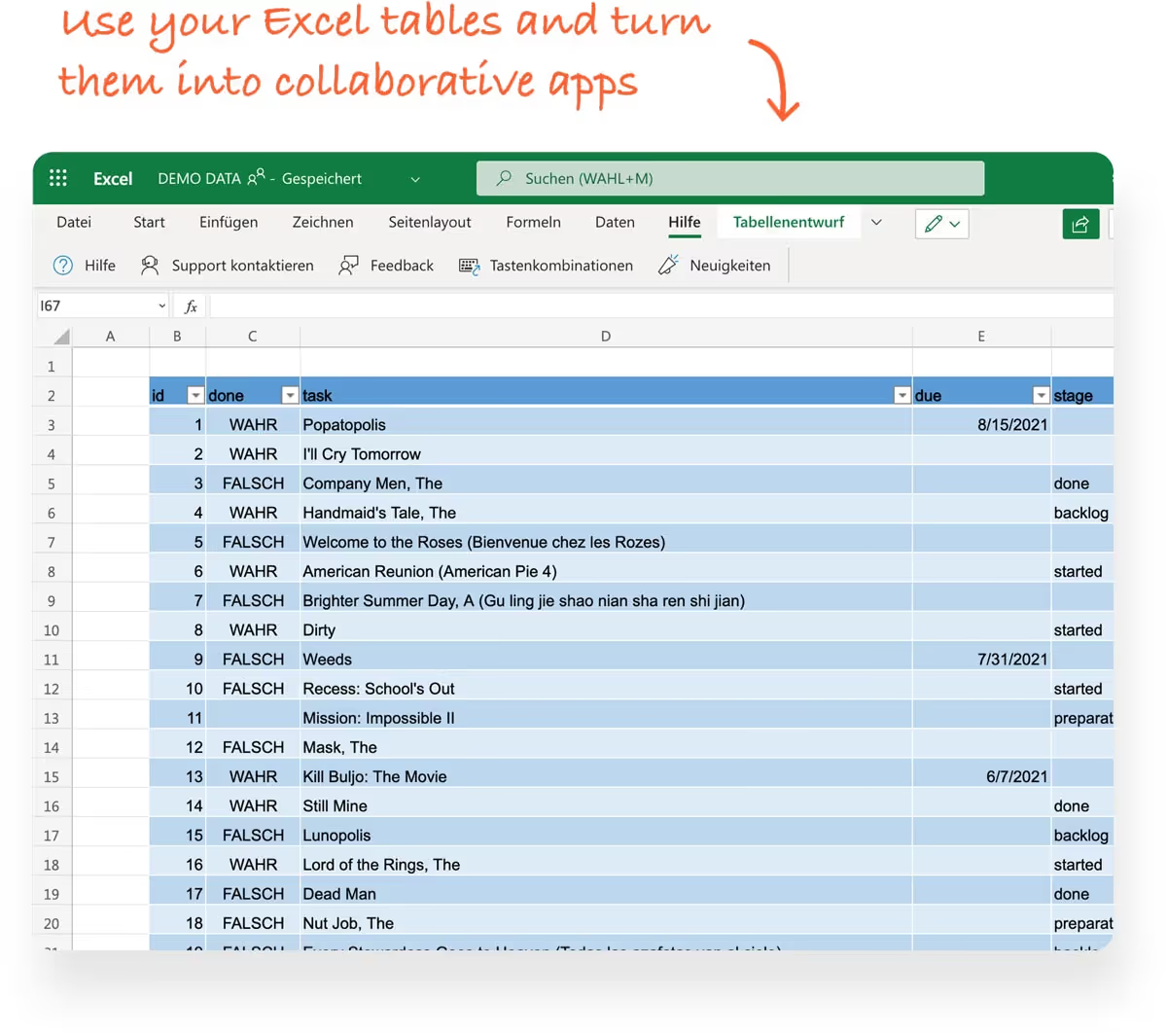
Start with an Excel table
Create or open an Excel table with columns for task name, status, assignee, and other relevant fields.
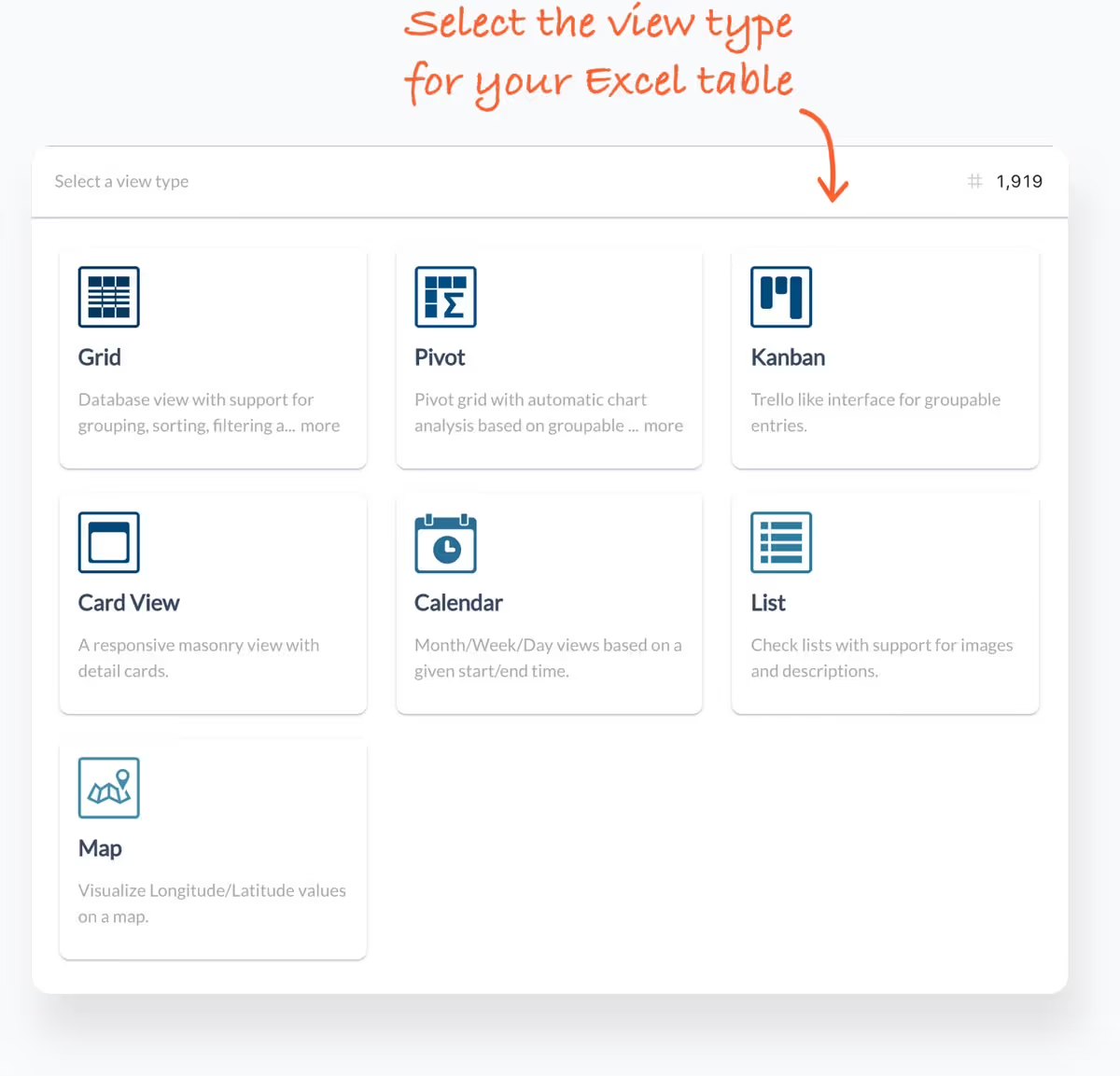
Select Kanban view in Airrange
Open your table in Airrange and choose the Kanban view template. Your status column maps to Kanban lanes.
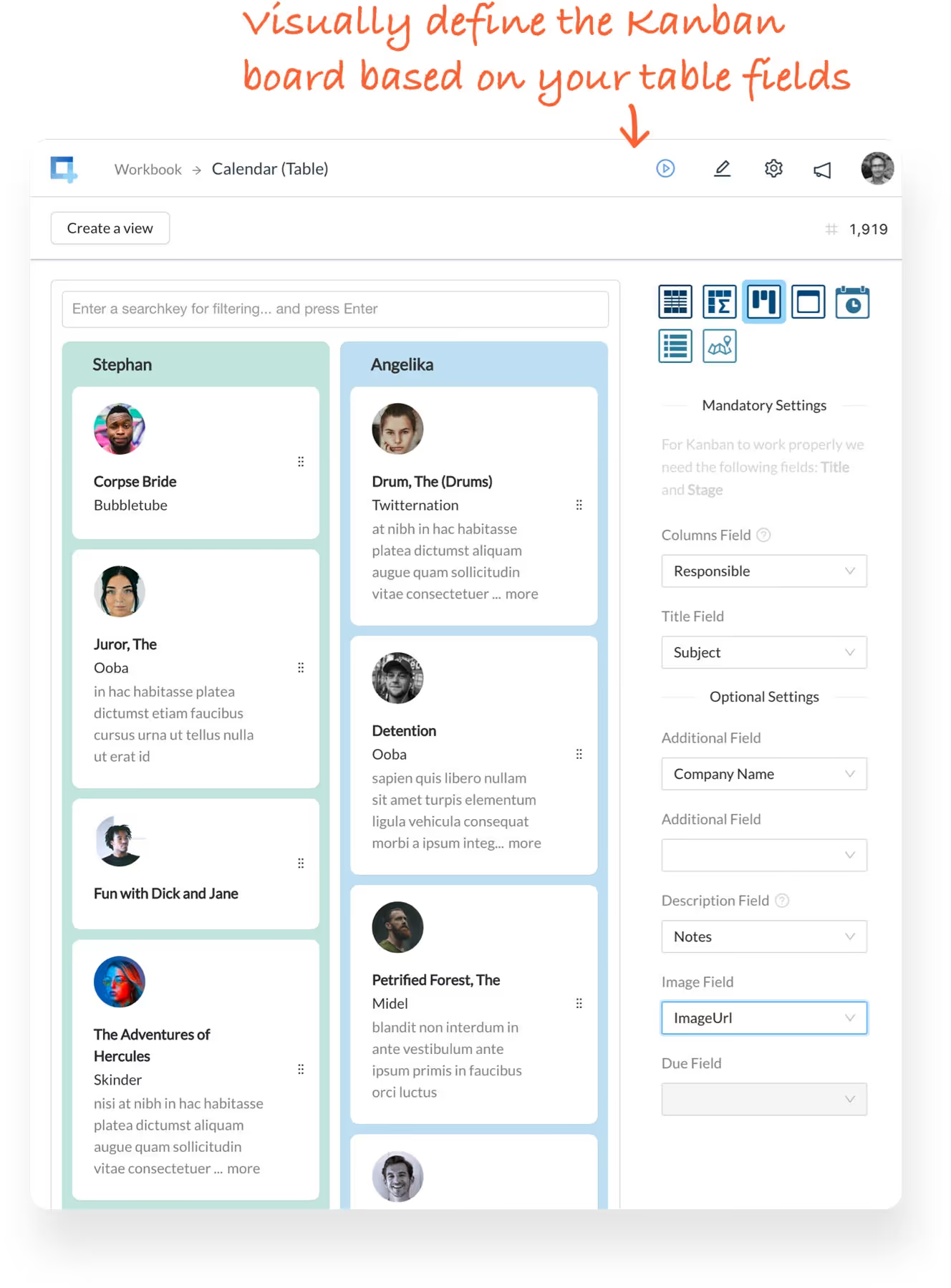
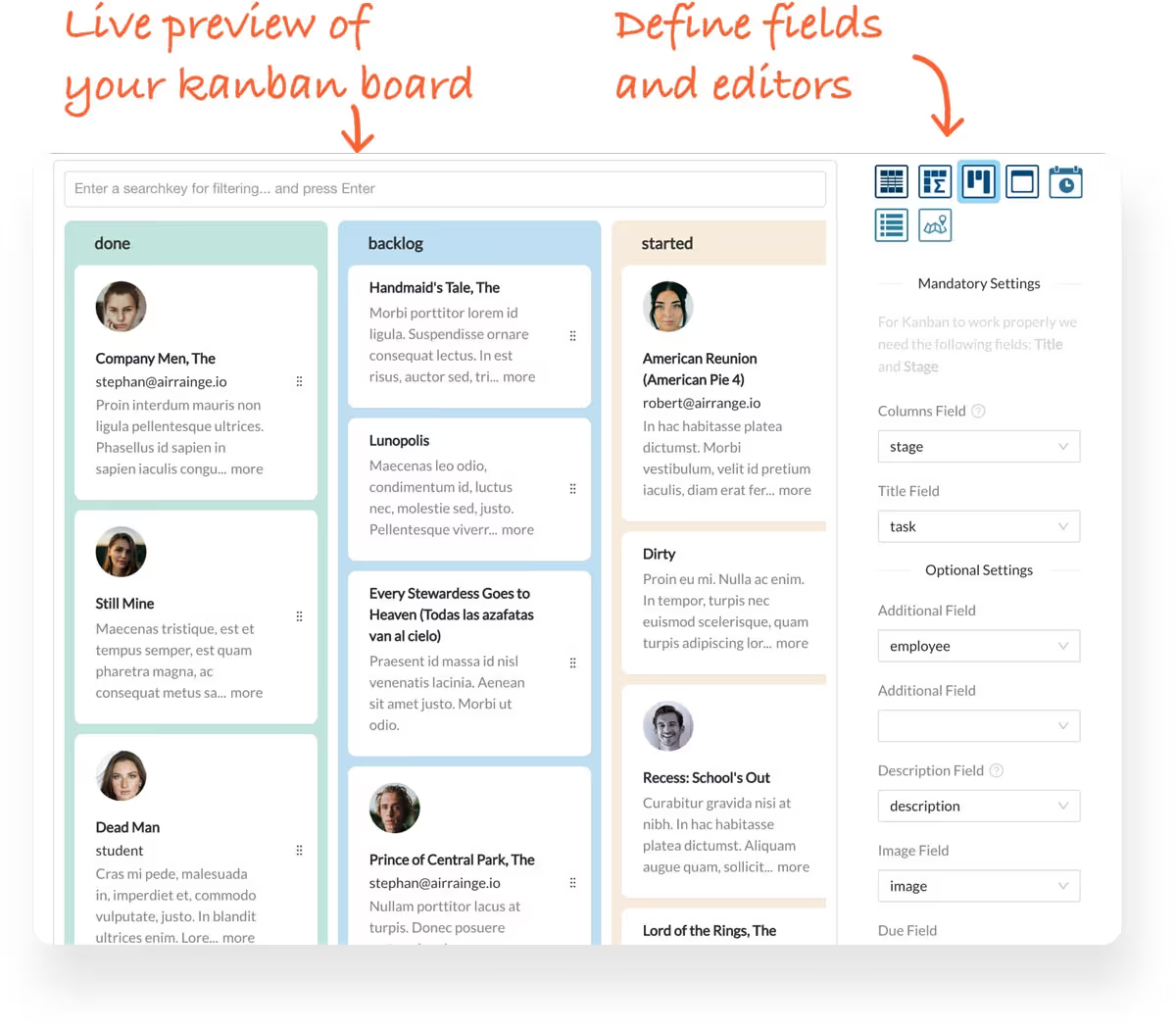
Customize your Kanban board — link Excel columns
Configure which columns map to lanes, cards, and details. Customize colors and layout.
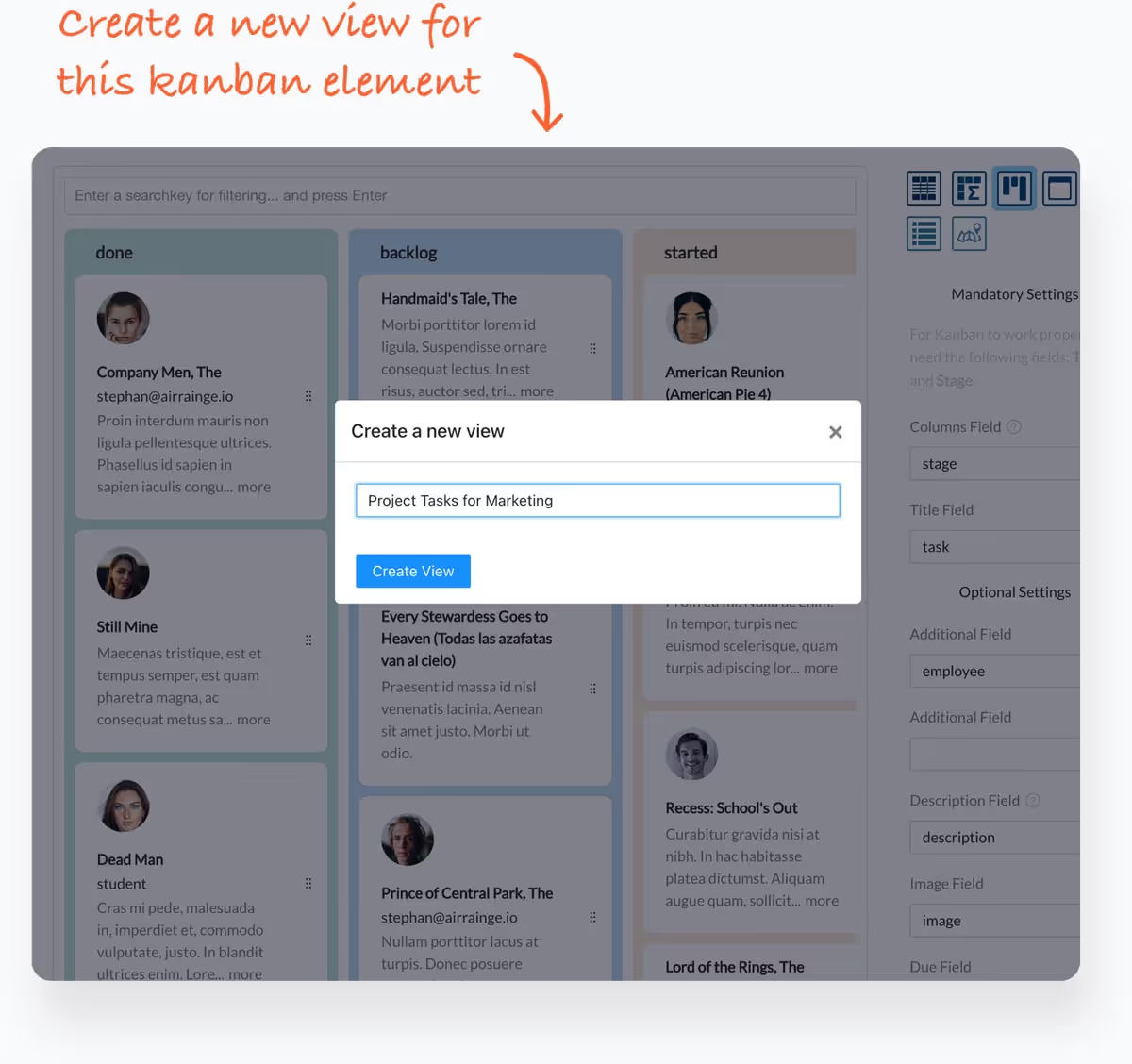
Name and save your Kanban view
Give your Kanban view a name and save it. Create multiple views of the same data if needed.
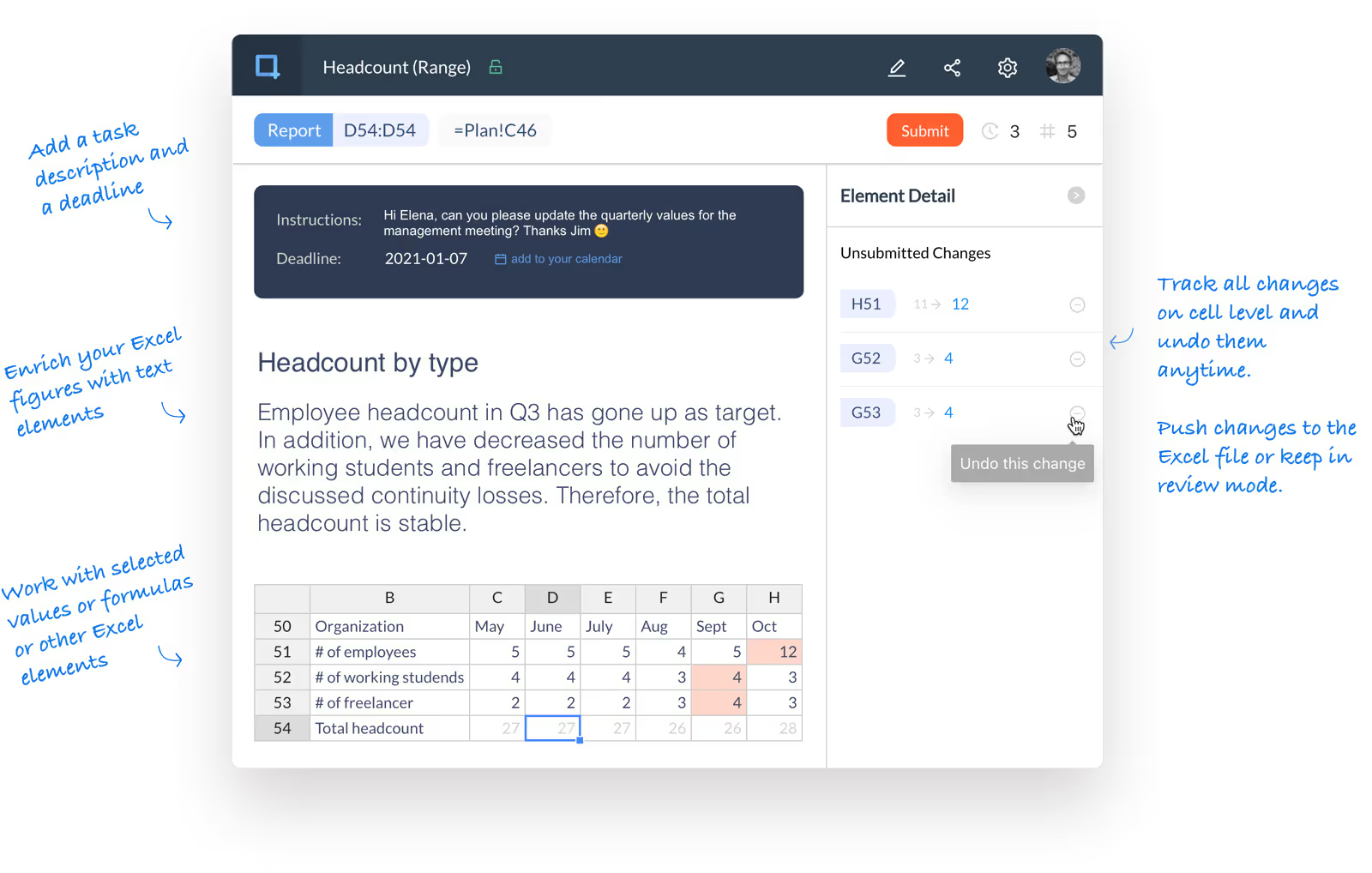
Share and track your Kanban board
Share by link, embed in your website, or integrate into MS Teams. Track all changes automatically.